Screenshots
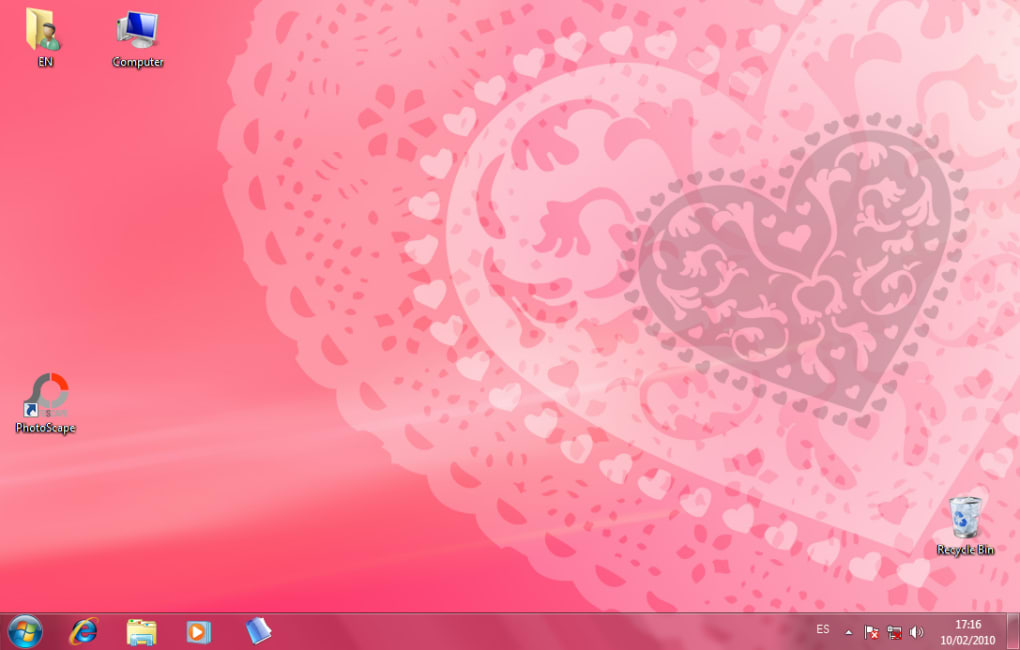
App details
- Size
- 1.37 MB
- Updated
- February 11, 2010
- Requires
- Windows 7
- Language
- English
- License
- Free
- Developer
- Microsoft
- Category
- Windows OS
SoftPas in:
This product is also available in the following languages:
About Valentine Windows 7 Theme
Download Valentine Windows 7 Theme – Romantic Desktop Customization for Windows 7
Overview
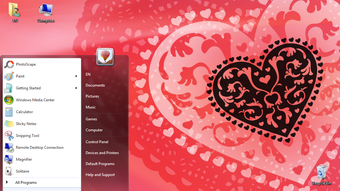
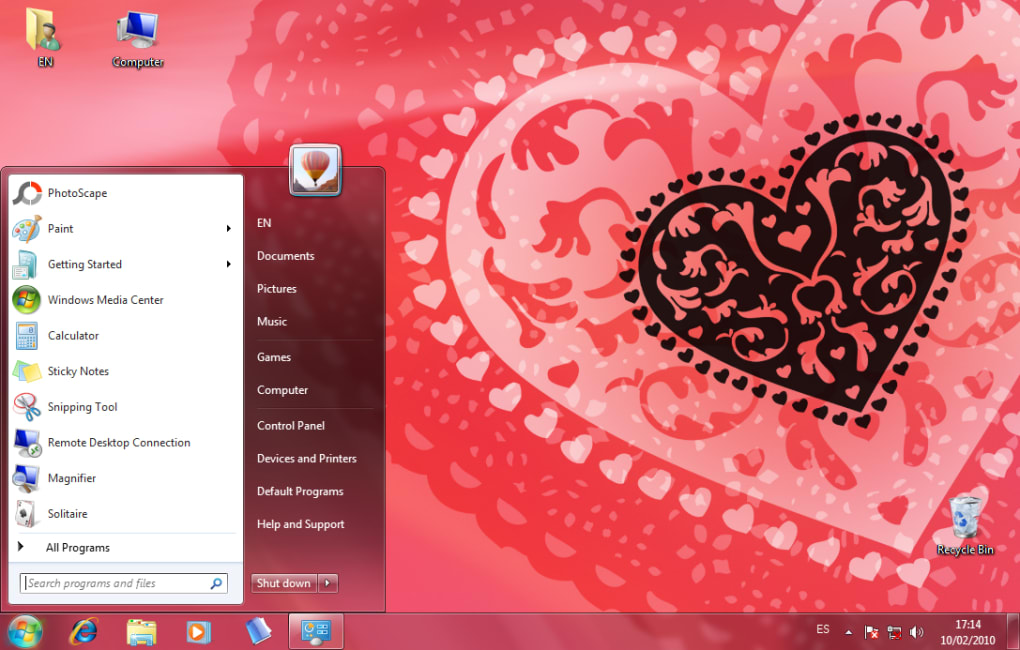
Valentine Windows 7 Theme is a free, love‑infused visual makeover that transforms a standard Windows 7 desktop into a heartfelt celebration of romance. Designed specifically for the short‑lived but highly anticipated Valentine's Day season, the theme embraces the classic red‑and‑pink palette, heart‑shaped icons, and gentle audio cues that play when you interact with the desktop. Whether you’re planning a surprise virtual date, want to set a sweet mood while you work, or simply enjoy seasonal décor, this theme adds a touch of affection to every pixel of your screen. The package contains multiple background wallpapers, a set of custom cursor files, and a collection of animated UI elements that blend seamlessly with Windows 7’s Aero interface. While it does not ship with a matching screensaver, the theme’s visual consistency ensures a cohesive look from the login screen to the taskbar. Because it is built as a standard Windows 7 visual style, installation is straightforward and does not require any third‑party software beyond the built‑in theme manager. The theme is ideal for users who celebrate Valentine’s Day, but it can also serve as a playful way to test Windows 7’s theming capabilities. If you’re looking for a quick, free, and secure way to add a romantic flair to your PC, Valentine Windows 7 Theme is a perfect choice.
Key Features
- Multiple Heart‑Themed Wallpapers: Choose from five high‑resolution background images, each featuring artistic heart patterns, soft lighting, and a blend of pink and red tones.
- Custom Cursors & Icons: Hand‑crafted cursor sets and folder icons replace the default Windows pointers, giving every click a subtle “love” animation.
- Aero‑Friendly Visual Effects: The theme respects Windows 7’s Aero glass, allowing transparent window borders to retain their sleek look while adding a pink glow.
- Gentle Audio Feedback: Soft chime sounds accompany mouse‑over actions and window minimizations, creating an immersive romantic ambiance without being intrusive.
- Easy Toggle Between Designs: A built‑in control panel lets you switch wallpapers and cursor sets without reinstalling the theme.
- Free & Secure Download: Hosted on a reputable file‑sharing platform with SHA‑256 checksum verification to ensure integrity.
Why These Features Matter
Each feature is designed to enhance the user experience without compromising system performance. The multiple wallpapers let you personalize the look for different moods—whether you prefer a subtle blush or a bold crimson backdrop. Custom cursors add a playful tactile element, making everyday tasks feel more intimate. By preserving Aero transparency, the theme avoids the common pitfall of “flat” looks that can make older operating systems feel outdated. Audio cues are deliberately low‑volume and melodic, ensuring they complement rather than distract from work or gaming sessions. The toggle functionality saves time; you won’t need to dig through the Control Panel each time you want a fresh visual. Finally, the free and secure distribution model aligns with users who value safety and cost‑effectiveness, especially during a holiday where many seek quick, downloadable décor solutions.
Installation, Usage, and Compatibility
Step‑by‑Step Installation Guide
- Download the Valentine Windows 7 Theme zip file from the official download page.
- Verify the SHA‑256 checksum (provided on the download page) to ensure the file is untampered.
- Extract the contents to a folder on your desktop (e.g.,
C:\ValentineTheme). - Right‑click the
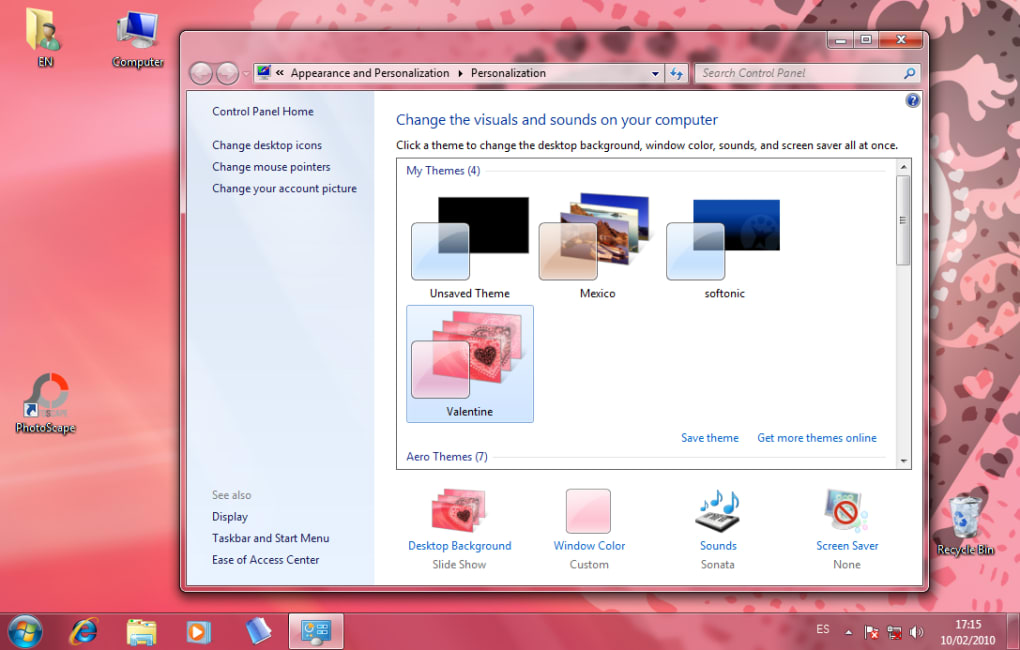
install.inffile and select Install. Windows will prompt for administrator permission. - After installation, open Control Panel → Appearance and Personalization → Personalization. The new “Valentine” theme will appear at the bottom of the list.
- Select the theme and click Apply. Your desktop will instantly refresh with the new wallpapers, cursors, and audio effects.
Using the Theme Effectively
Once applied, you can access the theme’s control panel by right‑clicking the desktop and choosing Valentine Settings. From here you can switch between the five wallpapers, enable or disable the audio cues, and adjust the cursor speed. The theme integrates with Windows 7’s built‑in “Desktop Background” slideshow, allowing you to rotate heart‑filled images automatically every 15 minutes. If you experience any visual glitches, a simple restart of Windows Explorer (via Task Manager) usually resolves the issue.
Compatibility Details
Supported OS: Windows 7 (both 32‑bit and 64‑bit editions). The theme leverages the native visual style engine, so no additional runtime libraries are required. It is not compatible with Windows 8/10/11 because those versions use a different theming architecture. Users on Windows XP can manually apply the wallpaper files, but cursor and audio integrations will not function.
Troubleshooting Common Issues
If the theme fails to install, ensure that Windows 7’s Theme Service is running (search “services.msc” and locate “Themes”). Disable any third‑party visual customization tools (e.g., ClassicShell) that might interfere with the theme engine. For audio not playing, verify that the system volume is not muted and that the “Windows Audio” service is active. Finally, always keep your Windows 7 updates current; the latest Service Pack includes bug fixes that improve theme stability.
Pros, Cons, and Frequently Asked Questions
Pros
- Completely free and secure download.
- Rich selection of high‑quality, heart‑themed wallpapers.
- Seamless integration with Windows 7 Aero, preserving transparency.
- Lightweight audio effects add ambiance without draining resources.
- Easy installation and one‑click activation.
Cons
- No dedicated screensaver included.
- Only compatible with Windows 7; not usable on newer Windows versions.
- Audio may be considered distracting by users who prefer silent desktops.
- Limited customization beyond the provided options (e.g., cannot edit individual icons).
FAQ
Is the Valentine Windows 7 Theme safe to download?
Yes. The theme is hosted on a reputable site and includes a SHA‑256 checksum so you can verify file integrity before installation.
Can I use the theme on Windows 10?
No. Windows 10 uses a different theming engine, so the visual style files are not compatible. However, you can still use the wallpaper images manually.
Do I need any third‑party software to apply the theme?
No. The theme installs directly through Windows 7’s built‑in theme manager. Administrator rights are required for installation.
Can I disable the audio effects?
Absolutely. The “Valentine Settings” panel includes a toggle to turn sound on or off at any time.
Is there a way to add my own custom wallpaper to the theme?
Yes. You can place additional images in the C:\ValentineTheme\Wallpapers folder and select them via the Windows Personalization settings, though they won’t have the built‑in heart overlay.
Conclusion & Call to Action
Overall, Valentine Windows 7 Theme delivers a delightful, season‑specific makeover for anyone using Windows 7. Its vibrant red‑and‑pink color scheme, heart‑filled wallpapers, and subtle audio cues create an immersive romantic environment without sacrificing system performance. While the lack of a matching screensaver and limited compatibility with newer Windows versions are minor drawbacks, they do not outweigh the theme’s strengths—especially for users who celebrate Valentine’s Day or simply enjoy a festive desktop. Installation is straightforward, and the free, secure distribution ensures peace of mind. If you’re ready to give your PC a love‑filled facelift this February, click the download button below, verify the checksum, and let the Valentine Windows 7 Theme turn your workspace into a celebration of affection.
Guides & Tutorials
How to install Valentine Windows 7 Theme
- Click the Download button above.
- Once redirected, accept the terms and click Install.
- Wait for the Valentine Windows 7 Theme download to finish on your device.
How to use Valentine Windows 7 Theme
This software is primarily used for its core features described above. Open the app after installation to explore its capabilities.
User Reviews
No reviews yet. Be the first to share your experience.
You may also like
more
Llama 2
Free-to-use large language model As the new addition to Meta’s arsenal of langua...

NotebookLM
Revolutionizing the note-taking and idea-generation process NotebookLM is an exp...

Github co pilot
AI-inspired software development and coding platform GitHub Copilot is a browser...

Google Gemma
Google’s lightweight AI models Introducing Google Gemma , a family of cutting-ed...

AI Image Enlarger
A free app for Windows, by ai-image-larger. AI Image Enlarger is a free software...

DALL E
AI-driven text-to-image transformation engine DALL·E is a free graphic and desig...